---
title: Using Handlebars in your apps
description: "Use Handlebars 2.15.2 in Fliplet app screens for templating, with built-in helpers for images, dates, auth URLs, JSON, and conditional comparisons."
type: api-reference
tags: [js-api, libraries, handlebars]
v3_relevant: true
deprecated: false
---
# Using Handlebars in your apps
Use [Handlebars `2.15.2`](https://handlebarsjs.com/) in Fliplet app screens for templating, with built-in helpers for images, dates, auth URLs, JSON, and conditional comparisons. Handlebars is included on every screen, so you can start using it straight away — here's a quick example following the official Handlebars docs:
{% raw %}
```js
// Compile a template in JavaScript by using Handlebars.compile
var source = '{{ title }}
{{ body }}
';
var template = Handlebars.compile(source);
// Get the HTML result of evaluating a Handlebars template by executing the template with a context.
var context = { title: 'My New Post', body: 'This is my first post!' };
var html = template(context);
```
{% endraw %}
## Using a template script for long-form templates
For clarity, you can include your source templates in the screen's HTML so they're easier to write. This is particularly useful if you are writing long-form templates. If you do so, **you must escape all Handlebars commands with a backslash (`\`)** because the screen HTML is also compiled by Handlebars in Fliplet's engine:
{% raw %}
```handlebars
This is the screen of a Fliplet app
```
{% endraw %}
```js
// Grab the template from the HTML and compile it with Handlebars
var source = $('#source').html();
var template = Handlebars.compile(source);
// Get the HTML result
var context = { title: 'My New Post', body: 'This is my first post!' };
var compiledHTML = template(context);
// Write the HTML into our output
$('#output').html(compiledHTML);
```
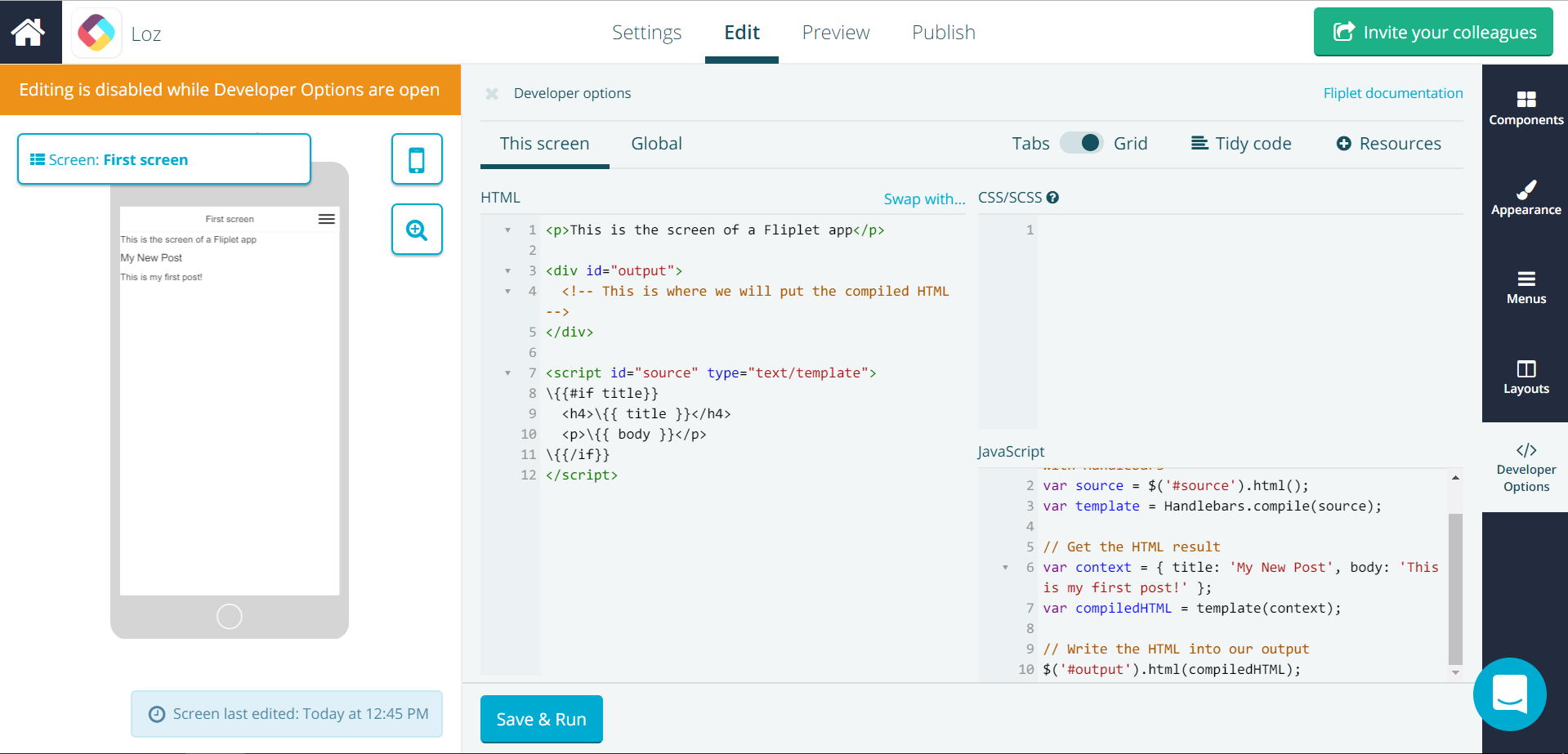 ## Using helpers to enhance your templates
Handlebars helpers can be used to add formatting (with **Expression Helpers**) and enhanced logic operations (with **Block Expression Helpers**) to your content. See [Handlebars documentation](https://handlebarsjs.com/) to learn how to use and write your own helpers.
Fliplet apps and widget interfaces are loaded with the following helpers.
{% raw %}
### Expression Helpers
- `images` (or `image`) outputs multiple `
## Using helpers to enhance your templates
Handlebars helpers can be used to add formatting (with **Expression Helpers**) and enhanced logic operations (with **Block Expression Helpers**) to your content. See [Handlebars documentation](https://handlebarsjs.com/) to learn how to use and write your own helpers.
Fliplet apps and widget interfaces are loaded with the following helpers.
{% raw %}
### Expression Helpers
- `images` (or `image`) outputs multiple `![]() ` tags based on the URLs provided, e.g. `{{images url}}`
- `url` A single image URL or an array of image URLs
- `join` (optional) Add a `join` parameter to set a custom string used to separate multiple image tags, e.g. `{{images url join="
` tags based on the URLs provided, e.g. `{{images url}}`
- `url` A single image URL or an array of image URLs
- `join` (optional) Add a `join` parameter to set a custom string used to separate multiple image tags, e.g. `{{images url join="
"}}`
- `auth` outputs an authenticated URL for any encrypted assets stored by Fliplet, e.g. `{{auth url}}`
- `url` URL to be authenticated
- `moment` outputs a date/time value based on the provided format, e.g. `{{moment timestamp format="MMM Do YY"}}` to format a date, or `{{moment timestamp inputFormat="H:mm" format="h:mm a"}}` to format a timestamp based on a specific input format. See [github.com](https://github.com/Fliplet/handlebars-helper-moment/blob/master/README.md) for the full documentation.
- `nl2br` changes any new lines or carriage returns in the value to a `
` tag, adding a new line to the HTML output, e.g. `{{nl2br str}}`
- `str` String to be parsed for new lines
- `plaintext` outputs the combined text contents of HTML markup, e.g. `{{plaintext html}}`
- `html` HTML markup to be processed
- `removeSpaces` outputs the string with all spaces removed, e.g. `{{removeSpaces str}}`
- `str` String to be processed
- `toJSONString` changes any objects to a JSON string, e.g. `{{toJSONString obj}}`
- `obj` Object to be parsed into a JSON string
- `get` gets the value at path of object based on `_.get()`, with support for a custom default value if the resolved value is undefined, e.g. `{{ get path defaultValue }}`
- `path` Path of the property to get
- `defaultValue` The value returned for undefined resolved values
**Available with _List (from data source)_ component only**
- `formatCSV` ensures that `"` characters are removed if the input is a CSV that contains `"` characters due to `,` being used in a value, e.g. `"Washington, D.C.", New York` will be formatted into `Washington, D.C., New York`
### Block Expression Helpers
- `compare`, e.g. `{{#compare a '===' b}}{{else}}{{/compare}}`
- The second parameter can be swapped out with any of the following operators for comparison: `==`, `===`, `!=`, `!==`, `<`, `>`, `<=`, `>=`, `&&`, `||` `typeof` (e.g. `{{#compare a 'typeof' 'string'}}{{else}}{{/compare}}`)
**Deprecated**
- `ifCond` Alias of and works the same way as `compare`
- `equals` checks if two values provided are exactly the same, e.g. `{{#equals a b}}{{else}}{{/equals}}`. This is the same as `{{#compare a '===' b}}{{else}}{{/compare}}`.
- `and` checks if two conditions are both truthy, e.g. `{{#and a b}}{{else}}{{/and}}`. This is the same as `{{#compare a '&&' b}}{{else}}{{/compare}}`.
- `or` checks if one of the two conditions are truthy, e.g. `{{#or a b}}{{else}}{{/or}}`. This is the same as `{{#compare a '||' b}}{{else}}{{/compare}}`.
{% endraw %}
---