---
title: App Actions V2 (deprecated)
description: "Deprecated App Actions V2 — configure a pipeline of functions that runs on-device or in the cloud, ad hoc or on a schedule. Migrate to V3 App Actions."
type: api-reference
tags: [js-api, core, app, actions]
v3_relevant: false
deprecated: true
exclude_from_v3_catalog: true
---
# App Actions V2 (deprecated)
Deprecated: App Actions V2 is deprecated and will be removed in a future release. Please use App Actions V3 for all new development. V3 provides a simpler, code-based approach — write a single execute(context) function instead of configuring function pipelines. Existing V2 actions will continue to work but should be migrated to V3.
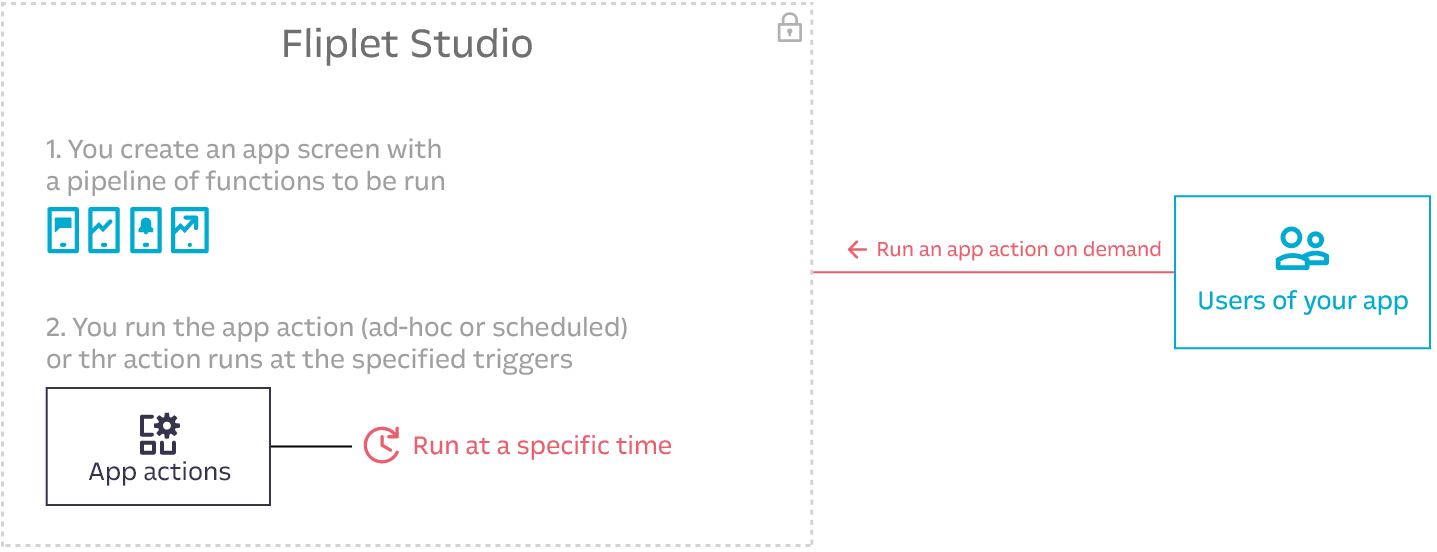
Configure a pipeline of functions that runs on-device or in the cloud, either ad hoc or on a schedule. Deprecated — use [App Actions V3](/API/core/app-actions-v3).
#### Sample use cases:
- Weekly reports on app usage via email
- Push notifications to users if users have a booking for today
- Importing RSS feeds daily & notifying users via push notifications when new items are found
- Automatically checkout all check-ins at midnight or on-demand
- Send weekly reminders for users to take update their working status
- Integration with 3rd party tools
- Return data based on user's rights
---
## Data models and key concepts
1. An app action consists in a unique `name`, an optional `frequency`, `timezone`, `environment` and `triggers`.
2. An app action has a pipeline of `functions` (2nd gen).
3. An app action can be created as **scheduled** (when using the `frequency` parameter) or to be run **on-demand**. Additionally, our 2nd generation actions can be triggered by external events (e.g. a data source being updated). This can be configured via the `triggers` property.
4. An app action can contain a pipeline of functions to run either locally (on device) or remote, or target an app screen to run in the cloud. A result can be given back by the screen both when running on a schedule and when on-demand.
5. An app action (2nd gen) can run on server when `environment` property is set as `server` or `any`
6. An app action (2nd gen) can run on client side when `environment` property is set as `client` or `any`
7. An app action is **limited to 120 seconds of execution time**. After 120 seconds, the action will be killed and a specific timeout error will be returned and saved in the logs.
8. The payload for on-demand actions is **limited to 2048 characters**.
9. The result sent from an on-demand app action is **limited to 6MB**.
10. Only JavaScript assets are loaded when the screen runs as an app action. Assets such as CSS and images will be ignored by the system.
11. Scheduled app actions will only run the published version of a screen, whereas on-demand actions will run the version from the same environment they are fired from (e.g. Fliplet Viewer, Live apps )
---
## Configuring function pipeline for app actions
Our latest iteration of app actions require you to define a pipeline of functions to execute when the action runs. Additionally, functions can be nested into sub-pipelines.
First, you want to fetch the array of functions available in the system:
```js
Fliplet.App.Tasks.Functions.get().then(function (listOfFunctions) {
// ...
});
```
Each function has the following properties:
- `id`: the Fliplet ID (formerly `widgetId`) of the function
- `name`: the display name of the function
- `package`: the package name of the function
- `description`: the description of the function
Here'a a sample code that creates a new app action with a pipeline of function.
In the example, function `com.fliplet.function.if` function that behaves like an [if statement](https://developer.mozilla.org/en-US/docs/Web/JavaScript/Reference/Statements/if...else) and evaluates the contents of the input payload and checks if `foo` is `true`. If so, it will execute function `com.example.function.return-string` with the given settings. If `foo` is `false`, the function will be skipped.
```js
Fliplet.App.Actions.create({
name: 'sayHello',
environment: "server",
functions: [
{
functionPackage: "com.fliplet.function.if",
settings: {
condition: "foo === true"
},
functions: [
{ functionPackage: "com.example.function.return-string", settings: { message: "Hello world" } }
]
}
],
triggers:[
{
trigger: 'manual'
}
]
})
```
Each function will be executed with the configured settings. An additional payload can be added when calling the action:
```js
Fliplet.App.Actions.run('sayHello', { foo: true });
```
### Action triggers
An action can be triggered as a result of a system event (e.g. a data source being updated, a log entry being created). You can configure the triggers for an action using the `triggers` property.
These are the available types of triggers:
- `log`: Triggered when a [log](https://developers.fliplet.com/Organization-audit-log-types.html#logs-from-fliplet-apps) entry is created. Can be executed on server side only
- `schedule`: Executes at a specific interval. Can be executed on server side only
- `manual`: Executes manually using the JavaScript API. Can be executed on server or client side
- `analytics`: Triggered when an analytics event occurs. See the list of client side analytics events [here](https://developers.fliplet.com/Analytics-documentation.html). Can be executed on client side only
The following example creates an action that is triggered when a log entry is created with a `type` of `dataSource.entry.create` (i.e. a new entry is created in a data source) in the data source with ID 789:
```js
Fliplet.App.Actions.create({
name: 'send-email-on-error',
environment:'server',
triggers: [
{
trigger: 'log',
where: { type: 'dataSource.entry.create', dataSourceId: 789 }
}
],
functions: [
{ functionPackage: 'com.example.function.send-email', settings: { } }
]
});
```
The `context` of the app action will contain the `trigger` name as well as the `log` object that triggered it. See an example below:
```js
{
trigger: "log",
log: {
id: 123,
appId: 2,
organizationId: 3,
dataSourceId: 789,
dataSourceEntryId: 4,
appNotificationId: null,
sessionId: 1,
type: "dataSource.entry.create",
data: {
columns: [
"foo"
],
},
createdAt: "2023-09-13T15:50:50.797Z"
},
}
```
## Create an action
### Create a server side action with log trigger
Use the `create` JS API to create the action. The `log` trigger can be configured with a `where` object to specify the conditions under which the action will be triggered.
Note that the `log` trigger can only be executed on the server side
```js
Fliplet.App.Actions.create({
name: 'send-new-user-email',
active: true,
functions: [
{
settings: {},
functionPackage: 'com.example.function.send-email'
}
],
environment: 'server',
triggers: [
{
trigger: 'log',
where: {
type: 'dataSource.entry.create',
dataSourceId: 177
}
}
]
}).then(function(action) {
// App action has been created and will send email when any new entry is created in data source id: 177
});
```
### Create a server side action with schedule trigger
Use the `create` JS API to create the action. The `schedule` trigger can be configured with a `frequency` property, which is a "cron expression" to run the action periodically according to a given schedule (e.g. `0 5 * * *`).
#### Frequency
```
┌───────────── minute (0 - 59)
│ ┌───────────── hour (0 - 23)
│ │ ┌───────────── day of the month (1 - 31)
│ │ │ ┌───────────── month (1 - 12)
│ │ │ │ ┌───────────── day of the week (0 - 6) (Sunday to Saturday)
│ │ │ │ │
│ │ │ │ │
│ │ │ │ │
* * * * *
```
Here are a few examples for the frequency value:
| Frequency | Description |
|-------------------|--------------------------------------------------------------------------------------------------------|
| `1 0 * * *` | Run at one minute past midnight (00:01) every day |
| `0 * * * *` | Run once an hour at the beginning of the hour |
| `0 0 1 * *` | Run once a month at midnight of the first day of the month |
| `0 0 * * 0` | Run once a week at midnight on Sunday morning |
| `45 23 * * 6` | Run at 23:45 (11:45PM) every Saturday |
| `*/5 1 * * *` | Run every 5th minute of every first hour (i.e., 01:00, 01:05, 01:10, up until 01:55) |
| `0 0 1 1 *` | Run once a year at midnight of 1 January |
The timezone for the frequency can be defined via the timezone parameter using the full name of the zone, e.g. "Europe/Dublin".
Example timezones:
- America/Los_Angeles
- America/New_York
- Europe/Dublin
- Europe/London
- Europe/Rome
Note that the `schedule` trigger can only be executed on the server side
```js
Fliplet.App.Actions.create({
name: 'send-monday-weekly-reminder',
active: true,
frequency: '0 8 * * 1',
functions: [
{
settings: {},
functionPackage: 'com.example.function.send-email'
}
],
environment: 'server',
triggers: [
{
trigger: 'schedule',
}
]
}).then(function(action) {
// App action has been created and will send email every Monday morning at 8am
});
```
### Create a client side action with analytics trigger
Use the `create` JS API to create the action. The `analytics` trigger can be configured with a `where` object to specify the conditions under which the action will be triggered.
Note that the `analytics` trigger can only be executed on the client side
The following action will be executed when the user visits the page with pageId: 77.
```js
Fliplet.App.Actions.create({
name: 'update-website-visited-count',
active: true,
functions: [
{
settings: {},
functionPackage: 'com.example.function.update-count'
}
],
environment: 'client',
triggers: [
{
trigger: 'analytics',
where: {
type: 'analytics.pageView',
data:{
_pageId: 77
}
}
}
]
}).then(function(action) {
// App action has been created and will be executed when page with id 77 is visited
});
```
The following action will be executed when the a form is submitted on the page with pageId: 77.
```js
Fliplet.App.Actions.create({
name: 'update-form-content',
active: true,
functions: [
{
settings: {},
functionPackage: 'com.example.function.update-form-content'
}
],
environment: 'client',
triggers: [
{
trigger: 'analytics',
where: {
type: 'analytics.event',
data:{
category: "form",
action: "submit",
_pageId: 341,
}
}
}
]
}).then(function(action) {
// App action has been created and will be executed when a form has been submitted for page with id 77
});
```
### Create a manual action with manual trigger
Use the `create` JS API to create the action. The `manual` trigger can be executed manually using `run` JS API.
Note that the `manual` trigger can be executed on the server or client side
```js
Fliplet.App.Actions.create({
name: 'send-email',
active: true,
functions: [
{
settings: {},
functionPackage: 'com.example.function.send-email'
}
],
environment: 'any',
triggers: [
{
trigger: 'manual'
}
]
}).then(function(action) {
// App action has been created and will send email when triggered manually
});
```
### Run a manual action
You can execute action with `manual` trigger using `run` and `runWithResult` JS API.
```js
// Run an action in asynchronous mode
Fliplet.App.Actions.run('send-email');
// Run an action in asynchronous mode with an
// input payload to be sent to the function pipeline.
Fliplet.App.Actions.run('send-email', {
email: 'user@example.com'
}).then(function () {
// The action has been queued for processing.
// No result is given back.
});
// Run an action synchronously with an input payload
// and retrieve back the result
Fliplet.App.Actions.runWithResult('email-is-registered', {
Email: 'john@example.org'
}).then(function (result) {
// This example assumes your result returns a "isRegistered" property
if (result.isRegistered) {
// ....
}
});
```
## Update an action
Use the `update` JS API with the input action `id` or `name` to update any property of the action (among `functions`, `trigger`, `frequency` and `active`):
```js
Fliplet.App.Actions.update('confirm-booking', {
functions: [
{
settings: {},
functionPackage: 'com.example.function.send-email'
}
],
environment: 'server',
triggers: [
{
trigger: 'log',
where: {
type: 'dataSource.entry.create',
dataSourceId: 177
}
}
]
}).then(function (action) {
// Action has been updated
});
```
## Delete an action
Use the `remove` JS API with the input action `id` or `name` to delete an action.
```js
Fliplet.App.Actions.remove('confirm-booking').then(function () {
// Action has been removed
});
```
## Debug an action
You can debug an action in your browser. To debug the app actions open a browser tab on the tasks compile endpoint
- `URL` GET /v1/apps/{appId}/tasks/{taskId}/compile?html
Below are the URLs for different region
- `EU` https://api.fliplet.com/v1/apps/22/tasks/25/compile?html
- `US` https://us.api.fliplet.com/v1/apps/22/tasks/25/compile?html
- `CA` https://ca.api.fliplet.com/v1/apps/22/tasks/25/compile?html
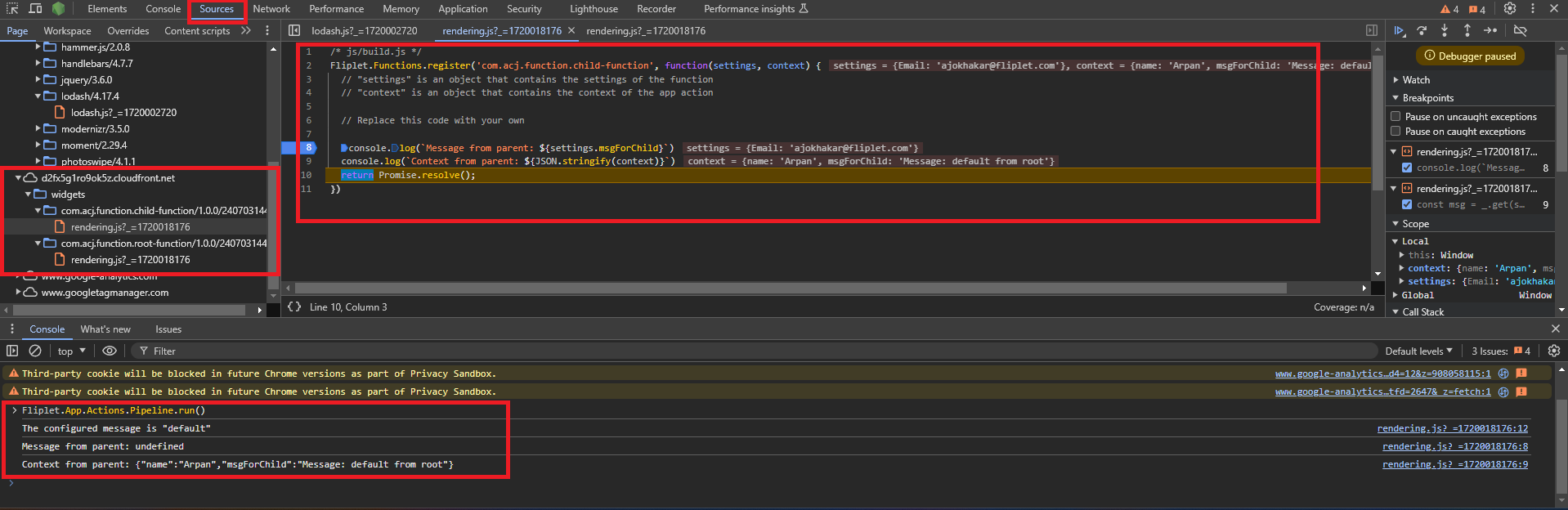
#### Steps to debug an app actions V2
- Open the browser DevTools by pressing the `F12` key
- Go to Source tab and from the pages find the relevant function JS file
- Put the Debug point in the code you want to debug
- Go to the console and type Fliplet.App.Actions.Pipeline.run(). This is the command that gets executed by our infrastructure when running the action. It internally finds the pipeline in - - `ENV.taskPipeline` and the JSON payload from the query parameter payload
## Publish an action
Use the `publish` JS API to publish the actions. Only published actions can be used in the live app. Any changes made to actions that are not published will not be reflected in the live apps. If you unpublish an action it will stop working in the live app.
`publish` JS API accept two arguments:
- `actionId`: Action Id
- `isPublish`: Boolean value. True to publish, false to unpublish
```js
// To publish the action with Id 53
Fliplet.App.Actions.publish(53,true);
// To unpublish the action with Id 53
Fliplet.App.Actions.publish(53,false);
```
## Get the list of app actions
Use the `get` method to fetch the list of app actions you have created. Each action will contain a `lastRunAt` and `nextRunAt` timestamps to help you figuring out when the action has run the last time and when it's scheduled to be run.
```js
Fliplet.App.Actions.get().then(function (actions) {
actions.forEach(function (action) {
console.log(action);
});
});
```
Here is a sample of the array of actions returned:
```json
[
{
"id": 1,
"name": "send-monday-weekly-reminder",
"active": true,
"frequency": "*/2 * * * *",
"timezone": "Europe/Dublin",
"lastRunAt": "2022-07-21T12:32:02.495Z",
"nextRunAt": "2022-07-21T12:34:00.000Z",
"createdAt": "2022-07-20T09:29:00.366Z",
"updatedAt": "2022-07-20T09:29:00.366Z",
"appId": 123,
"pageId": 456
}
]
```
## Get the logs for an action
Each time n runs a new log record gets generated in our backend. You can access such logs for one of all actions:
```js
// Fetch the last 50 completed and failed action results
Fliplet.App.Actions.getLogs().then(function (response) {
// response.count
// response.logs
console.log(response.logs);
});
// Fetch the last 10 failed action logs for just one action, given its ID
Fliplet.App.Actions.getLogs({
id: 123,
limit: 10,
where: { type: 'app.task.failed' }
}).then(function (response) {
console.log(response.logs);
});
```
Sample logs:
```json
[
{
"id": 1,
"createdAt": "2022-07-21T12:36:02.663Z",
"type": "app.action.completed",
"data": {
"mode": "on-demand",
"duration": 2000,
"actionId": 1
}
},
{
"id": 2,
"createdAt": "2022-07-21T12:36:02.663Z",
"type": "app.task.completed",
"data": {
"mode": "scheduled",
"duration": 3000,
"actionId": 1,
"result": { "a": 1 }
}
},
{
"id": 3,
"createdAt": "2022-07-21T12:36:02.663Z",
"type": "app.task.failed",
"data": {
"mode": "scheduled",
"duration": 5000,
"actionId": 1,
"result": {
"errorType": "Error",
"errorMessage": "Error: Evaluation failed: TypeError: Cannot read property 'sendEmail' of undefined...",
"trace": ["..."]
}
}
}
]
```
---
## Loops
### Loop Over Items
Using loop user can configure action to iteration over an array of items and executes a defined set of functions for each item.
#### Configuration
- `type`: Must be set to `loop`
- `items`: Context property containing the array to iterate
- `functions`: Array of functions to execute per item
```js
Fliplet.App.Actions.create({
name: 'loop-action',
active: true,
functions: [
{
settings: { dataSourceId: 45268 },
functionPackage: 'com.fliplet.function.read-datasource'
},
{
type: 'loop',
items: 'records',
functions: [
{
settings: {},
functionPackage: 'com.fliplet.function.send-email'
}
]
}
],
environment: 'server',
triggers: [{ trigger: 'manual' }]
});
```
### Loop With Range
Iterates over a numeric range
#### Configuration
- `type`: Must be set to `loop`
- `range`: Object with `from` and `to` properties defining the numeric range
- `functions`: Array of functions to execute per item
```js
Fliplet.App.Actions.create({
name: 'range-loop-action',
active: true,
functions: [
{
type: 'loop',
range: { from: 0, to: 5 },
functions: [
{
settings: {},
functionPackage: 'com.fliplet.function.string-return'
}
]
}
],
environment: 'server',
triggers: [{ trigger: 'manual' }]
});
```
## Conditional Operators
### If-Else Statements
Using conditional statements user can if else like conditional branching in the action pipeline.
#### Configuration
- `type`: Must be set to `if`
- `conditions`: Array of condition blocks containing:
- `condition`: Expression or function to evaluate.
- `functions`: Array of functions to execute if the condition is true.
- `elseFunctions` (optional): Functions executed if none of the conditions match.
```js
Fliplet.App.Actions.create({
name: 'conditional-action',
active: true,
functions: [
{
settings: { dataSource: 268 },
functionPackage: 'com.fliplet.function.read-datasource'
},
{
type: 'if',
conditions: [
{
condition: 'records[0].data.email == "user@example.com"',
functions: [
{ type: 'function', functionPackage: 'com.fliplet.function.send-email' }
]
}
],
elseFunctions: [
{ type: 'function', functionPackage: 'com.fliplet.function.send-notification' }
]
}
],
environment: 'server',
triggers: [{ trigger: 'manual' }]
});
```
## Example: Combining Loops and Conditional Operators
```js
Fliplet.App.Actions.create({
name: 'loop-conditional-action',
active: true,
functions: [
{
settings: { dataSource: 8556 },
functionPackage: 'com.fliplet.function.read-datasource'
},
{
type: 'loop',
items: 'records',
functions: [
{
type: 'if',
conditions: [
{
condition: 'currentItem.data.Admin == true',
functions: [
{
settings: { html: 'Admin user', subject: 'Admin User' },
functionPackage: 'com.fliplet.function.loop-send-email'
}
]
}
],
elseFunctions: [
{ type: 'function', functionPackage: 'com.fliplet.function.loop-send-email' }
]
}
]
}
],
environment: 'server',
triggers: [{ trigger: 'manual' }]
});
```
## Troubleshooting
### Whitelist inbound requests from App Actions
If you're using an app action to make requests to your server you may need to whitelist the IP address that our infrastructure uses to make inbound requests to your systems. Please use the relevant IP for your region:
- Canadian customers: `3.98.9.146`
- European customers: `52.212.7.119`
- US customers: `54.151.38.62`